AI Scarf Virtual Try-On
Enhance your fashion experience with the online AR Scarf Virtual Try-On. Shoppers can instantly drape scarves over their outfits and see how patterns flow in real life. This interactive virtual scarf feature allows customers to explore different styles and colors online, replicating the in-store experience. Powered by high-fidelity AR simulation, users can enjoy detailed scarf visualisation anytime, anywhere.
This guide walks you through:
- Endpoint:
/s2s/v2.0/task/scarf - Authentication: All requests require an
Authorization: Bearer YOUR_API_KEY - Workflow:
- Prepare a selfie image: Uploading an image or providing a valid image URL of yourself as the virtual try-on target.
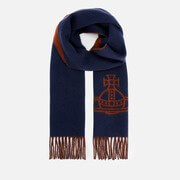
- Prepare a scarf image: Upload an image or provide a valid image URL of a scarf product or a person wearing a scarf clearly visible without any obstruction.
- Select a style and a gender: Select a preferred style and the gender you wish to visualize.
- Fire an AI task and Retrieve Task ID: Capture the
task_idfrom the response. - Poll Status (
GET): Use thetask_idto check the status of the task. Continue polling untiltask_statusis"success"or"error".
- Authentication
- Include your API key in the request header using Bearer Token:
Authorization: Bearer YOUR_API_KEYYou can find your API Key at https://yce.makeupar.com/api-console/en/api-keys/.
- AI Scarf API Usage Guide
This guide explains how to upload images, prepare reference scarfs, and create virtual try-on tasks using the AI Scarf API.
- Step 1. Prepare a Selfie Image
You can:
Upload a selfie image using the File API (
/s2s/v2.0/file), orProvide a valid image URL.
- Step 1.1 Upload a File Using the File API
Use the File API (/s2s/v2.0/file) to upload a target user image.
Image Requirements:
- Upload a selfie photo.
- Ensure the photo clearly shows the upper body.
- Avoid backgrounds with multiple people or distracting objects.
Example Request:
curl --request POST \
  --url https://yce-api-01.makeupar.com/s2s/v2.0/file \
  --header 'Authorization: Bearer YOUR_API_KEY' \
  --header 'content-type: application/json' \
  --data '{
    "files": [
      {
        "content_type": "image/jpg",
        "file_name": "selfie_photo_01_3dbd1b6683.jpg",
        "file_size": 547541
      }
    ]
}'- Step 1.2. Retrieve File API Response
The response includes:
file_idfor creating an AI task.requests.urlfor uploading the actual image file.
Sample Response:
{
  "status": 200,
  "data": {
    "files": [
      {
        "content_type": "image/jpg",
        "file_name": "selfie_photo_01_3dbd1b6683.jpg",
        "file_id": "SaGaqpDgKwFrVBgMpQMA3HY0LeqdT9/13W5TOD8/u/FfjK3xgCQ+hRt9MJXBFaud",
        "requests": [
          {
            "method": "PUT",
            "url": "https://yce-us.s3-accelerate.amazonaws.com/demo/ttl30/...signature...",
            "headers": {
              "Content-Length": "547541",
              "Content-Type": "image/jpg"
            }
          }
        ]
      }
    ]
  }
}- Step 1.3. Upload Image to Provided URL
Use the requests.url from the File API response to upload the image:
curl --location --request PUT 'https://yce-us.s3-accelerate.amazonaws.com/demo/ttl30/...signature...' \
  --header 'Content-Type: image/jpg' \
  --header 'Content-Length: 547541' \
--data-binary @'./selfie_photo_01_3dbd1b6683.jpg'- Step 2. Prepare a Reference Scarf Image
You can:
- Upload a scarf image using the File API (
/s2s/v2.0/file), or - Provide a valid image URL.
Supported Scarf Images:
- Product image of the scarf.
- A person carrying a scarf without any obstruction as a scarf reference.
Refer to File Specs and Errors for detailed specifications.
- Step 3. Create an AI Task
Select a preferred style and the gender you wish to visualize. Use the AI Task API (/s2s/v2.0/task/scarf) to create a virtual try-on task.
Parameters:
- For the user image:
src_file_idorsrc_file_url. - For the scarf image:
ref_file_id, orref_file_url.
Example Request:
curl --request POST \
  --url https://yce-api-01.makeupar.com/s2s/v2.0/task/scarf \
  --header 'Authorization: Bearer YOUR_API_KEY' \
  --header 'content-type: application/json' \
  --data '{
    "src_file_url": "https://example.com/selfie.jpg",
    "ref_file_url": "https://example.com/accessory.jpg",
    "gender": "female",
    "style": "random"
}'
Sample Response:
{
  "status": 200,
  "data": {
    "task_id": "SaGaqpDgKwFrVBgMpQMA3HY0LeqdT9_13W5TOD8_u_GPi6NqQ3dhlmN-6ntFwhzT"
  }
}- Step 4. Poll for Task Result
Use the task ID to check the status:
curl --request GET \
  --url https://yce-api-01.makeupar.com/s2s/v2.0/task/scarf/SaGaqpDgKwFrVBgMpQMA3HY0LeqdT9_13W5TOD8_u_GPi6NqQ3dhlmN-6ntFwhzT \
  --header 'Authorization: Bearer YOUR_API_KEY' \
--header 'content-type: application/json'- Step 5. Retrieve Result
A successful response includes a download URL for the result image:
{
  "status": 200,
  "data": {
    "error": null,
    "results": {
      "url": "https://yce-us.s3-accelerate.amazonaws.com/demo/ttl30/...signature..."
    },
    "task_status": "success"
  }
}
Invalid API Key error response:
{
  "status": 401,
  "error": "Unauthorized",
  "error_code": "InvalidAccessToken"
}AI Scarf Virtual Try-On Specification
- Image Requirements
| Type | Minimum Resolution | Notes |
|---|---|---|
| Selfie | 512 × 512 | Face visible, head-to-chest preferred |
| Scarf | 512 × 512 (product) 800 × 800 (worn) | Clear, unobstructed scarf view |
Supported Scarf Image
- Product Image Requirements
- Minimum resolution: 512 × 512 pixels
- Only one product per image
- The product should cover more than 25 per cent of the image height
- Worn Image Requirements
- Minimum resolution: 800 × 800 pixels

Supported Selfie View
- Recommended image resolution: at least 512 × 512 pixels.
- Recommended face coverage: more than 15 per cent of the image height.
- The image must clearly show a single human subject with the face fully visible and at least a head shot included in the frame, from head to chest. A half-body shot is preferred.

Try-on Styles
- There are five predefined styles for generating the virtual try-on output: "style_french_elegance", "style_light_luxury", "style_cottagecore", "style_modern_chic" and "style_bohemian". You can specify this style parameter when creating an AI task or allow the system to select a style at random by default.

- Supported Formats & Dimensions
| AI Feature | Supported Dimensions | Supported File Size | Supported Formats |
|---|---|---|---|
| AI Scarf Virtual Try-On | Input: long side <= 4096 Output: 896 x 1152 | < 10MB | jpg/jpeg/png/heic |
- Error Codes
| Error Code | Description |
|---|---|
| error_download_image | Failed to download source or reference image |
| error_inference | Inference pipeline error |
| error_no_face | No face detected in source image |
| error_nsfw_content_detected | NSFW content detected in result |
| exceed_max_filesize | File size exceeds 10 MB |
| invalid_parameter | Invalid gender or style value |
| unknown_internal_error | Other internal errors |
- Environment & Dependency
| Sample Code Language / Tool | Recommended Runtime Versions |
|---|---|
| cURL | - bash >= 3.2 - curl >= 7.58 (modern TLS/HTTP support) - jquery >= 1.6 (robust JSON parsing) |
| Node.js (JavaScript) | Node >= 18 (for global fetch) |
| JavaScript | - Chrome / Edge >= 80 - Firefox >= 74 - Safari >= 13.1 |
| PHP | PHP >= 7.4 (for modern TLS/compat), ext-curl (recommended) or allow_url_fopen=On + ext-openssl, ext-json |
| Python | Python >= 3.10 (for f-strings), requests >= 2.20.0 |
| Java | Java 11+ (for HttpClient), Jackson Databind >= 2.12.0 |